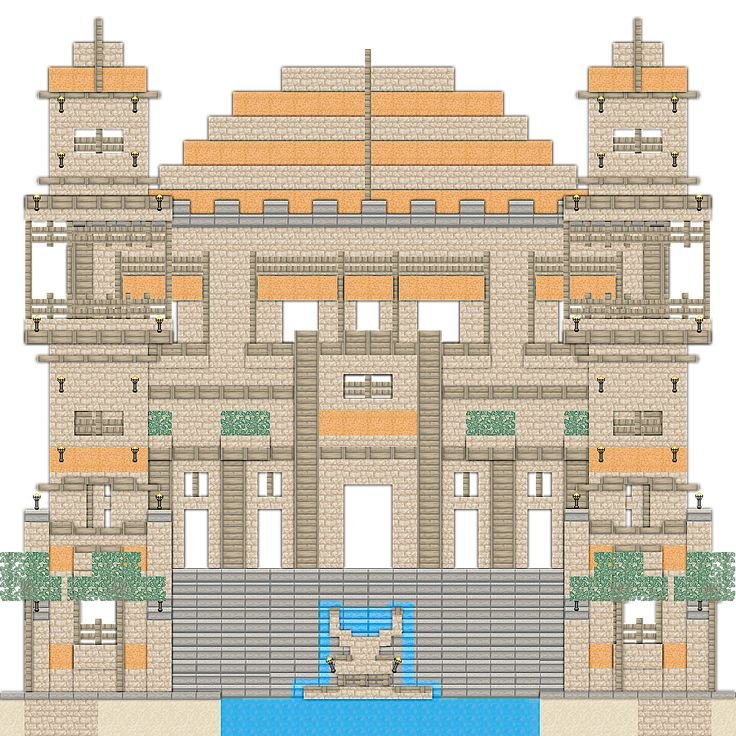
Have you ever dreamt of building a colossal castle, an intricate Redstone contraption, or an entire city in Minecraft, but felt daunted by the sheer scale or complexity? What if you could plan, design, and even automate large parts of your build, then share your ingenious designs with the world? The good news is that creating and sharing custom Minecraft blueprints isn't just possible—it's incredibly empowering, transforming you from a mere block-placer into a digital architect.
With the right tools and a structured approach, you can move beyond spontaneous construction to meticulously planned masterpieces. This guide will walk you through the most powerful creator tools, explain how they work, and show you exactly how to leverage them to design, execute, and share your most ambitious Minecraft projects.
At a Glance: Your Blueprint to Building Bigger
- Master powerful tools: Dive into official and community-made software like the Bedrock Editor, Chunker, and Blockbench to elevate your building game.
- Streamline construction: Learn how in-game features like Structure Blocks, Command Blocks, and WorldEdit (a popular server mod) can drastically speed up your builds.
- Design with precision: Understand how to plan your builds layer-by-layer, ensuring accuracy and efficiency.
- Bridge game editions: Discover how to convert your creations between Java and Bedrock versions of Minecraft.
- Share your genius: Explore platforms and methods for showcasing your custom blueprints and completed builds to the global Minecraft community.
Beyond Basic Blocks: Why Custom Blueprints Matter
Minecraft is, at its heart, a game of creation. But as your ideas grow grander, the traditional method of placing one block at a time can feel limiting. This is where the concept of a "blueprint" comes into play. In the real world, a blueprint is a detailed plan, guiding construction from foundation to finish. In Minecraft, it's the same principle: a strategic approach to building that ensures your vision comes to life exactly as imagined, with efficiency and consistency.
Custom blueprints allow you to:
- Tackle large-scale projects: Imagine building a massive fortress without a plan. Blueprints break down huge builds into manageable steps.
- Achieve intricate detail: Plan out complex Redstone circuits or detailed pixel art with precision before you even place the first block.
- Replicate designs: Build a perfect replica of your favorite house across multiple worlds or share it so others can replicate it themselves.
- Collaborate effectively: When working with friends on a server, a clear blueprint keeps everyone aligned and working towards the same goal.
Ready to transcend simple block placement? Let's equip you with the tools for the job.
The Architect's Toolkit: Powerful Software for Blueprinting
Modern Minecraft creation is a blend of in-game ingenuity and external software power. These tools, both official and community-driven, empower you to design, modify, and manage your builds with unprecedented control.
The In-Game Powerhouse: Bedrock Editor
For those primarily building in Minecraft Bedrock Edition, the Bedrock Editor is a game-changer. Accessed directly from the Minecraft Launcher's "Creator Tools" tab, this in-game tool transforms your building experience into a professional design environment. You launch Bedrock in Editor mode, creating new projects where every block placement is enhanced.
Think of it as a supercharged creative mode with specialized functionalities:
- Vibrant Visuals: Get instant, clear feedback on your edits, making design decisions much easier.
- Multiblock Selection: No more individual block destruction or placement for large areas. Select entire sections to move, delete, or duplicate with ease.
- Brush Tools: Paint terrain or fill expansive spaces rapidly, sculpting landscapes or massive walls in moments.
- Undo/Redo Support: Experiment freely! Make a mistake? Simply undo it without worrying about permanent damage to your build.
- Clone & Transform: Precisely copy and move structures, rotating or flipping them to create symmetrical designs or varied patterns quickly.
- Extensible Tools: For advanced users, scripting support allows you to create custom tools and workflows, tailoring the editor to your specific needs.
The Bedrock Editor is your go-to for rapid prototyping, large-scale construction, and intricate detailing directly within the Bedrock environment.
Crafting Custom Models: Blockbench
Sometimes, the standard Minecraft blocks aren't enough to capture your vision. This is where Blockbench shines. This free, open-source modeling tool, available on the web and as a downloadable app (Windows, macOS, Linux), integrates seamlessly into the Minecraft creation workflow. It allows you to design custom 3D models, textures, and even animations for entities, blocks, and items for both Bedrock and Java editions.
Blockbench is your canvas for expanding Minecraft's aesthetic possibilities:
- Entity Wizard: Build custom mobs or creatures without diving deep into complex metadata.
- Block Wizard: Design unique blocks that fit your aesthetic, complete with custom textures.
- Item Wizard: Create bespoke items that stand out from the default selection.
Provided by a passionate community of third-party contributors, Blockbench opens up a world of visual customization, letting you populate your blueprint with truly unique elements.
Bridging Worlds: Chunker for Edition Conversion
One of the biggest hurdles for Minecraft creators has historically been the divide between Java and Bedrock editions. If you build an incredible structure in Java, how do you get it into your Bedrock world (or vice versa)? Enter Chunker.
Chunker is a free, open-source tool developed by Hive Games, available as a desktop app with a user-friendly interface or a command-line version for automated processes. It's your universal translator for Minecraft worlds, allowing seamless conversion between Bedrock and Java editions. Beyond simple conversion, Chunker also offers powerful customization options:
- Modify World Settings: Adjust various world parameters during the conversion process.
- Substitute Blocks: Replace specific blocks from one edition with their equivalents (or entirely different blocks) in the other, ensuring your design translates perfectly.
While not an official Mojang or Microsoft offering, Chunker is a vital community-driven tool for creators who want their blueprints to be accessible across the entire Minecraft ecosystem.
Essential In-Game & Server-Side Aids
Beyond dedicated external applications, Minecraft itself, and its robust modding community, provide a suite of tools that are indispensable for creating and executing blueprints.
Mastering Mass Construction with WorldEdit
If you're building on a server or using a modded client, WorldEdit is likely already your best friend. This popular tool can be installed as a plugin for Minecraft servers or a mod for Minecraft Forge/Fabric. It's designed for rapid, large-scale terrain and structure editing using simple, yet powerful, commands.
With WorldEdit, you can:
- Select areas: Define cuboid or cylindrical regions with two clicks.
- Fill vast spaces: Replace air with stone, create oceans, or flatten mountains in seconds.
- Copy and paste: Duplicate entire structures or parts of them, instantly creating rows of houses or intricate patterns.
- Generate shapes: Command specific geometric shapes like spheres, cylinders, or pyramids with precise dimensions.
Installation is straightforward: download the correct version for your server or client and place it in the "mods" or "plugins" folder, then restart your game. WorldEdit turns hours of manual labor into minutes of command execution.
Building with Blueprints: Structure Blocks
For vanilla Minecraft players (especially in Bedrock Edition), Structure Blocks are your built-in blueprint tool. These are powerful in-game utilities that allow you to save, load, and move structures within your Minecraft world. They are fantastic for replicating sections of a build, creating templates, or moving a finished piece to a new location.
To use them:
- Enable Cheats: Structure Blocks are an admin tool, so you'll need cheats enabled in your world.
- Acquire the block: Type
/give [playername] structure_blockinto the chat. - Configure & Save: Place the block, define the size and offset of the structure you want to save, and give it a unique name. Hit "Save."
- Load your blueprint: Place another Structure Block at your target location, switch its mode to "Load," enter the structure's name, and click "Load."
Structure Blocks are perfect for creating repeatable build modules, such as sections of a wall, individual houses, or even complex Redstone gates, offering a true in-game blueprint system. To take your inspiration further, you can always Explore Minecraft build blueprints online for new ideas and construction methods.
Automating Brilliance: Redstone & Command Blocks
No discussion of advanced Minecraft building is complete without mentioning the power of Redstone and Command Blocks.
- Redstone: Minecraft's electrical circuitry. If your blueprint includes automated farms, complex doors, or sorting systems, Redstone is your medium. Start with basic components like Redstone dust, repeaters, comparators, and pistons to build intricate circuits that bring your static builds to life.
- Command Blocks: The ultimate tool for game mechanics customization. Obtained by enabling cheats and typing
/give [playername] command_block, these blocks execute powerful commands when activated. They can spawn items, teleport players, alter game rules, or trigger complex sequences. Command Blocks are crucial for adventure maps, custom minigames, and highly automated blueprint functions without external mods.
Together, Redstone and Command Blocks allow you to build dynamic, interactive blueprints that go far beyond simple structures.
Personalizing Your World: Custom Textures
A blueprint isn't just about form; it's also about aesthetic. Custom Textures allow you to completely overhaul the look and feel of your Minecraft world, giving your blueprints a unique visual identity.
Creating them involves:
- Image Editing: Use software like Photoshop, GIMP, or Paint.NET to design your custom block and item textures.
- Resource Pack Structure: Place these images into a properly organized folder structure to form a "resource pack."
- Installation: Zip the resource pack and place it in Minecraft's "resource packs" folder.
- Activation: Apply the custom textures in-game via the options menu.
Custom textures, when combined with expertly crafted blueprints, result in truly personalized and immersive Minecraft experiences.
From Vision to Reality: Creating Your First Blueprint
Now that you're familiar with the tools, let's outline the process of creating your own custom Minecraft blueprint.
Step 1: Ideation & Planning
Every great build starts with an idea. But an idea isn't a blueprint until it's tangible.
- Sketch it out: Whether on paper or a digital canvas, rough out your design. Consider its footprint, height, and general shape.
- Define your block palette: What materials will you use? Wood, stone, concrete, custom blocks? Planning this early ensures consistency and helps you gather resources.
- Consider scale and function: Is it a survival base, a decorative statue, or a Redstone factory? This will dictate its size and complexity.
- Layer-by-layer thinking: Even at this early stage, start thinking about how your build breaks down vertically.
Step 2: Choosing Your Toolset
With your plan in mind, select the right tools for the job. This decision depends on several factors:
- Complexity: For simple structures, in-game Structure Blocks might suffice. For grand, sweeping designs, WorldEdit or the Bedrock Editor are better.
- Edition: Building in Bedrock? The Bedrock Editor is powerful. Java? WorldEdit is dominant. Chunker helps bridge the gap if you need multi-edition compatibility.
- Custom assets: If your blueprint includes unique mobs, blocks, or items, Blockbench is essential.
- Automation: Redstone and Command Blocks are non-negotiable for interactive elements.
Don't be afraid to mix and match! You might design a custom mob in Blockbench, lay out the terrain with WorldEdit, construct the main building with the Bedrock Editor, and then use Structure Blocks to duplicate repeating sections. If you're looking for existing designs to kickstart your creativity or simply want a pre-made guide, you can always Explore Minecraft build blueprints on various community sites.
Step 3: Building & Refining
This is where your blueprint comes to life.
- Initial construction: Use your chosen large-scale tools (Bedrock Editor, WorldEdit) to lay down the basic shape and structure. Don't worry about perfection yet.
- Detailing and iteration: Once the framework is up, refine specific areas. Use brushes for terrain, clone tools for patterns, and manual placement for intricate details. If you're building custom assets, import them as you go to see how they fit.
- Test and adjust: Does your Redstone work? Do your custom models look right in-game? Don't be afraid to use the undo feature or modify your plan as you build. This iterative process is key to a polished blueprint.
Sharing Your Masterpieces: From Private Projects to Public Showcases
Building something incredible is only half the fun; sharing it with others multiplies the joy. There are several ways to distribute your custom Minecraft blueprints.
Direct World Sharing
The most straightforward way to share a complete build is by sharing the world file itself.
- Exporting worlds: Both Java and Bedrock editions allow you to export your world files. This creates a package (e.g., a
.mcworldfile for Bedrock) that others can easily import into their game. - Server files: If you built on a server, you can typically access the world folder directly. Compressing this folder and sharing it allows others to load your world onto their own servers or single-player games.
Remember to provide clear instructions on how to import your world, especially if it uses custom resource packs or behavior packs.
Blueprint Platforms & Community Sites
For those who prefer a more guided, block-by-block approach to sharing, dedicated blueprint platforms are invaluable. Buildguides.net is an excellent example of such a service.
These platforms offer:
- 3D Layer-by-Layer Blueprints: Visualize every single block and layer of your structure. Buildguides.net, for instance, offers a 3D viewer that allows users to step through each layer, zoom, and rotate to rebuild structures block by block. This is incredibly helpful for survival mode players who need to gather resources as they build.
- Detailed Information: Features often include difficulty ratings, precise block counts, a measure tool, and full materials lists. This takes the guesswork out of building.
- Beginner-Friendly: Clear steps and helpful tools make complex builds accessible to everyone.
- Cross-Edition Compatibility: Many guides, like those on Buildguides.net, are compatible with both Minecraft Java and Bedrock editions.
- Free & Premium Access: Services like Buildguides.net offer a selection of free blueprints, with premium subscriptions providing access to their full library and advanced features.
These platforms transform your elaborate constructions into easy-to-follow, interactive guides, democratizing complex building for the wider community. If you're seeking inspiration or a ready-made challenge, remember to Explore Minecraft build blueprints on these and other community sites.
Visual Documentation: Screenshots, Videos, & GIFs
Sometimes, you just want to show off your finished work without sharing the entire world file. High-quality visual documentation is key.
- Screenshots: Take multiple high-resolution screenshots from different angles, highlighting key features and details. Use Minecraft's photo mode (F1 in Java) for clean shots.
- Videos: Record a cinematic tour of your build. Show off Redstone in action, walk through intricate interiors, and highlight your favorite custom models.
- GIFs: For short, looping animations (like a Redstone contraption repeatedly activating), GIFs are perfect for sharing on social media or forums.
When presenting your work, aim for clarity and visual appeal. A well-documented blueprint not only showcases your skill but also inspires others.
Common Pitfalls & Pro Tips for Blueprint Builders
Even with the best tools, building ambitious projects can present challenges. Here are some common pitfalls to avoid and professional tips to adopt:
- Scale Mismanagement: It's easy to get carried away. Start with a realistic scale for your first few blueprints, then gradually increase complexity. A detailed small build is more impressive than a half-finished giant one.
- Neglecting Resource Planning: Especially in survival mode, materials matter. Always create a materials list (or use a tool like Buildguides.net's feature) for your blueprint before you start gathering.
- Version Incompatibility Issues: While Chunker helps, always be aware of the Minecraft version your blueprint is designed for. Some blocks or mechanics might behave differently across updates.
- Underestimating the Power of Undo: Whether in Bedrock Editor or a mod like WorldEdit, use
//undo(WorldEdit) or the undo button liberally. It's there to encourage experimentation, not punishment. - Forgetting to Backup: Before making significant changes or importing large structures, always back up your world. Accidents happen, and a backup can save hours of work.
- Embrace Community Resources: Don't reinvent the wheel. Many design principles, Redstone contraptions, and modeling techniques are already perfected by the community. Learn from them, adapt them, and then innovate. You'll find a wealth of resources when you Explore Minecraft build blueprints online.
Your Next Grand Design Awaits
The world of Minecraft creation is limitlessly imaginative, and the tools available today empower you like never before. From the real-time building prowess of the Bedrock Editor to the custom modeling capabilities of Blockbench, and the essential conversions provided by Chunker, you have everything you need to transform sprawling concepts into precise, shareable blueprints.
Stop dreaming about that epic build and start planning it. Dive into these powerful tools, experiment with the possibilities, and remember that every block placed with intention moves you closer to a masterpiece. The community is waiting to see what incredible structures you'll conjure into existence. So grab your pickaxe—or your command blocks—and begin crafting your legacy, one meticulously planned blueprint at a time.